Appearance
Cost book items
List
The list page lets you:
- add new items (New item button)
- edit existing items (Edit
 button)
 - remove items you don't want any more (Remove
 button)
 - clone items to create new entries for new levels (Right-click menu | Clone item)
- apply factors to entries (Right-click menu | Apply factor to create future value for item)
You can rearrange items by dragging the Drag handle  icon and dropping it in a new position in the list. This will affect the order the cost book items appear in dropdown selections.
The list collates cost book items from the past 3 years in each row. You may only edit the most recent cost book item for a row, and if there is no item, you can only edit the future year's rate.
Similarly, you may only delete the most recent cost book item in each row.
New item or Edit button
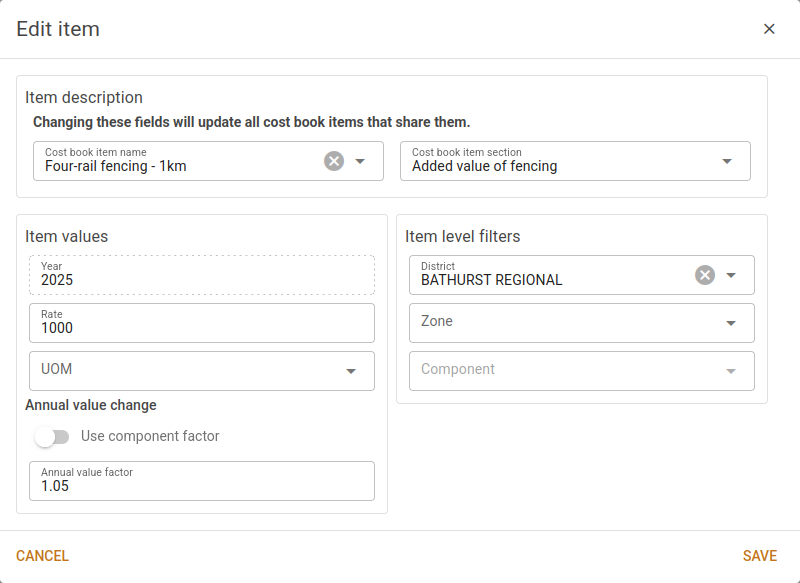
In the cost book item editor, you can adjust the name, values and level for a cost book item. The year cannot be adjusted, but for non-future years a Copy to new year button can be used to copy a cost book item to the future year, applying any factor as needed.
All cost book items have a level associated with them. Depending on the values set for the district, zone, and component, a cost book item can be filtered to only be usable with certain analyses. You can also use filters to construct overrides on cost book items. For example, you can create an item with no level filters and a rate of $1000, which is available for all analyses. Then, for analyses in a certain district (e.g. 'CENTRAL COAST'), you may choose to use a different rate (e.g. $800) by duplicating the item and adjusting the district and rate. For analyses in the Central Coast, the $800 rate will be used by default, whilst the $1000 rate will remain for analyses elsewhere.
The values of a cost book item include the rate, and units of measurement (UOM), as well as an annual factor. The annual factor is applied when the cost book item is moved to the new year. For cost book items at a component level, the corresponding component factor can be applied instead of a fixed factor to ensure consistent movement with the relevant component from year-to-year.
If a cost book item is set to use the component factor, this factor can be applied automatically when updating the corresponding component's report factor in the component report editor, but any rates in existing analyses will not be automatically updated. See this page for more information.
The name of a cost book item is similar to a standard description for rural improvements. If an analysis uses rural analysis for the report generation, this name will be prefixed to any description provided for the improvement entries in the report. The section restricts the cost book item to only appear in the selected section table in the rural analysis panel.
Changing the cost book item name or section adjusts all cost book items that share them. If you have a cost book item entry for different levels (global, district, zone and component), then changing the name on any of these entries will automatically update the name of the entries for all level entries.
This will also impact existing analyses, and PDFs generated after this sort of change will include the new names.